WolfoRan Mes Favoris
Version 1.2.02.26
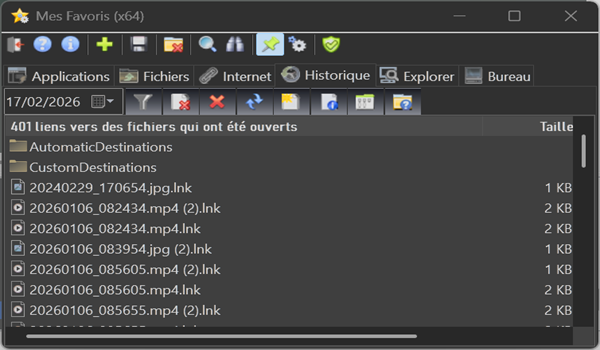
It's a mini general file explorer that provides access to all the content on your PC.
It's also a utility that allows users to place quick and easy access to their favorite applications, files and folders, favorite or frequently used websites, and a history of recently opened files all within a small window.
The main window opens by default in the bottom right corner of the desktop, above the notification area, where an icon is located to open it, close it, or choose which tab to open it in.
Panel :
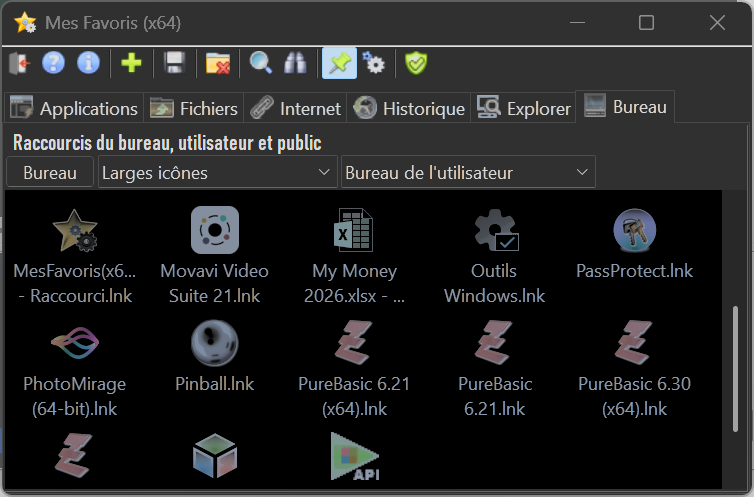
It consists primarily of a 400 x 300 pixel window, which opens in the right corner of the screen and contains 6 display tabs:
1. Applications: Lists applications selected by the user
2. Files: Lists files and folders selected by the user
3. Internet: Lists links to websites selected by the user
4. History: Lists links to all files that have been opened
5. Explorer: General file explorer
6. Desktop: Displays all desktop shortcuts
Version selection
Date : 21 février 2026
Langage : (FR) French
Version : 1.2.02.26
File: wolforanmesfavoris-v1-setup-x64.exe
File : wolforanmesfavoris-v1-setup-x86.exe
System requirements
- 32 or 64 bits
- Minimum screen resolution: 1024 x 768
- 512 MB of RAM minimum recommended.
Main features:
1. Adding and removing shortcuts to each category, organized as lists saved in text files (3 lists: Applications, Files and Folders, and Website Links)
2. Appearance: Each category is displayed in a tab where the items are listed. One column displays the name, and another indicates the exact location of the file. The latter is initially hidden for easier reading but can be resized to make it visible.
3. Resizing: Several options are available.
a. Manually, using the left mouse button held down and the cursor positioned on the top edge of the window to increase the height, and the cursor positioned on the left edge to widen the window by a maximum of 400 to 500 pixels.
b. Double-clicking on the same top edge will enlarge the window to the full height of the screen. It will remain on the right.
c. Using the resize button located in the title bar on the right. This will enlarge the window to the full height of the screen but will position it on the left.
4. Launching Executables and Opening Files: Each list item can be opened by double-clicking it with the left mouse button. A right-click opens a context menu offering various options for interacting with the file.
5. Saving Data: Each created list is automatically saved when the program is closed. However, it is possible to save manually at any time from the main toolbar, or automatically each time a list is modified (adding or deleting an item) by checking the option in the user preferences. This last option is more resource-intensive, as the entire list is recreated with each modification, and should only be enabled if you anticipate a power outage or system failure.
6. Backup: To avoid losing your lists in case of hard drive failure, an automatic backup option is available to create a copy of your data on another storage device. This must be enabled in the preferences. You have the option to save your data automatically each time you close the program, or manually via the main toolbar.
7. Data Recovery: If necessary, your saved data can be easily recovered and reinstalled. A button is provided for this purpose in the main toolbar. Your current data will then be overwritten by the previously saved data.
8. Data Deletion: If for any reason you wish to delete everything, you can do so directly from the main window, where buttons are provided in the toolbar to delete all lists and the saved data.
9. Closing the Window and Program: If you use the X in the title bar, the program will not close; only the window will be minimized to the notification area, awaiting user action. To completely close "My Favorites" you must click on the "Exit" button in the toolbar at the far left, or click on the "Exit" button in the context menu in the notification area which appears by right-clicking on the icon.
Clipboard contents:
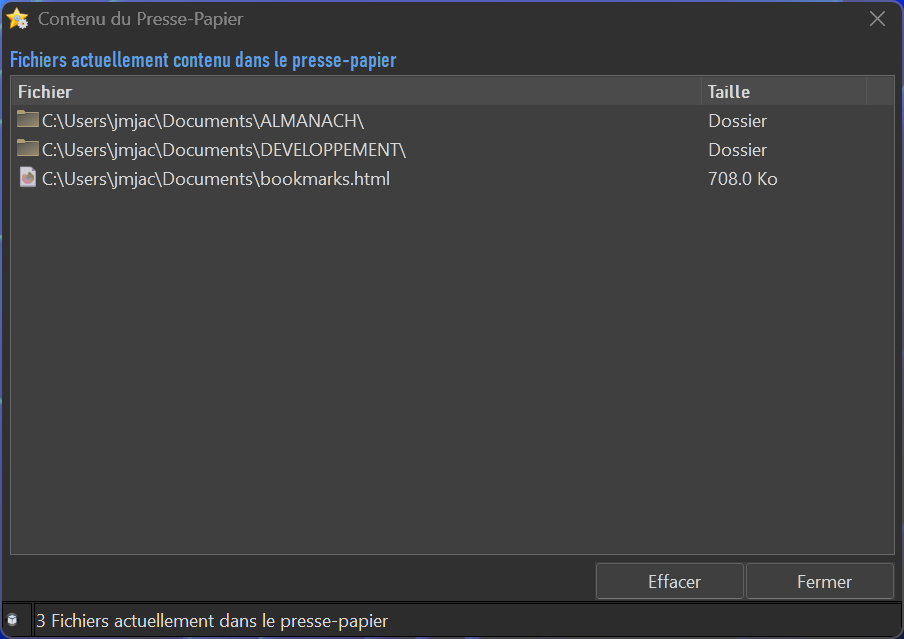
If no files are copied to the clipboard, the three buttons—Paste, View Clipboard Contents, and Clear Clipboard—are disabled.
They become active as soon as files are copied.
Clicking the "View Clipboard Contents" button opens a window displaying the copied files and folders. The user can then keep or delete them.
User preferences:
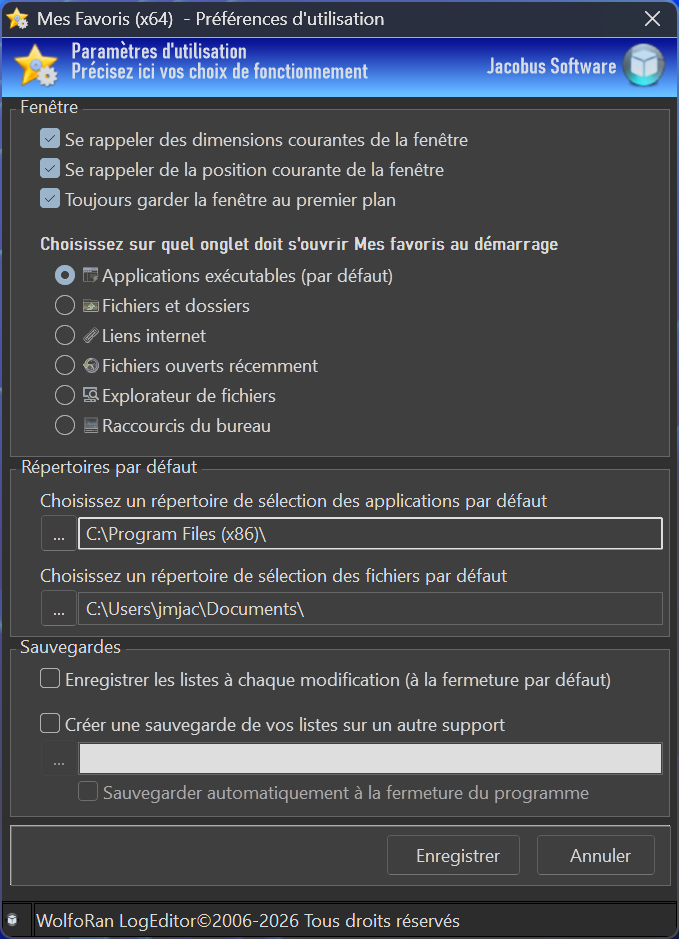
- maintain the window's dimensions and position,
- always keep the window in the foreground,
- choose which tab the program should open on startup,
- modify the directories for selecting files and applications,
- manage the operation of backups.