WolfoRan Mon PC & DirAnalyser
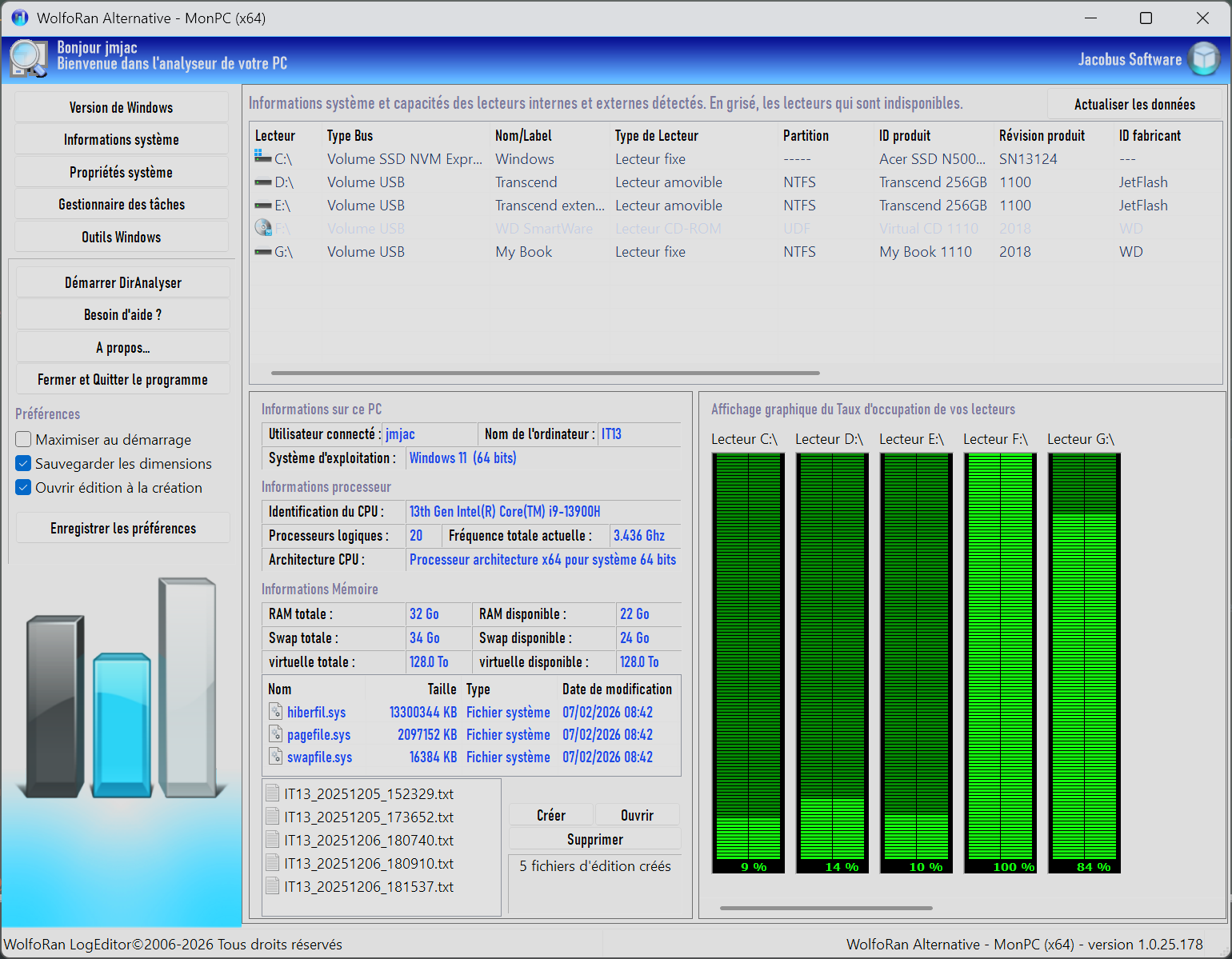
Mon PC
All your PC information at a glance, very quickly.
- Information on hard drives, internal and external drives, and a graphical display of their usage percentage.
- Information about the PC: name, structure, etc.
- Information on memory capacity, RAM, swap, virtual memory, as well as system files: hiberfil, pagefile, and swapfile.
- Create a text-format report of the displayed data at any given time.
- Direct access to the Task Manager and system information.
- Direct access to the Windows toolbox.
- The DirAnalyser add-on tool is available for direct access. (See below.)
A button allows you to refresh the data if a drive is disconnected or a new one is connected.
DirAnalyser
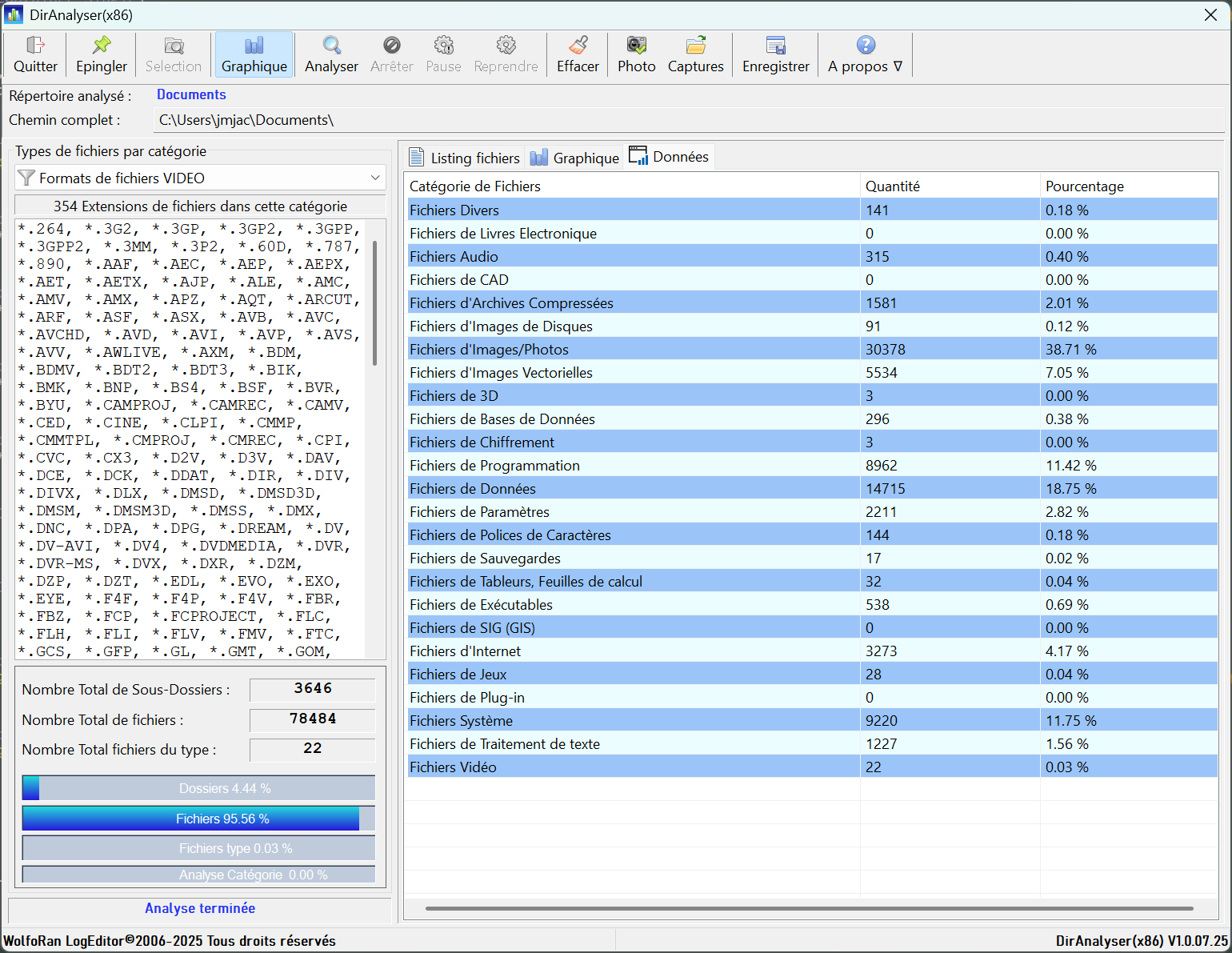
This utility allows you to analyze a folder and its subfolders, an entire directory, or even a hard drive to count the number of files it contains, sort them by category and extension, and generate a graphical report and exportable data in text format.
9478 file extensions are recognized.
Very easy to use, simply select a directory, choose the file category to count from the 25 available categories, and click "Analyze."
If you want to search all 25 file categories and their nearly 10,000 associated extensions, click "Graph" to activate this mode before clicking "Analyze."
DirAnalyser will handle the operations automatically until the final display.
To save the information obtained from the analysis, you can take a screenshot directly with the integrated tool accessible in the toolbar. The screenshot captures what is displayed; the image only captures what is necessary. It is possible to capture the bar chart or the listed data, and save this same list to a text file.
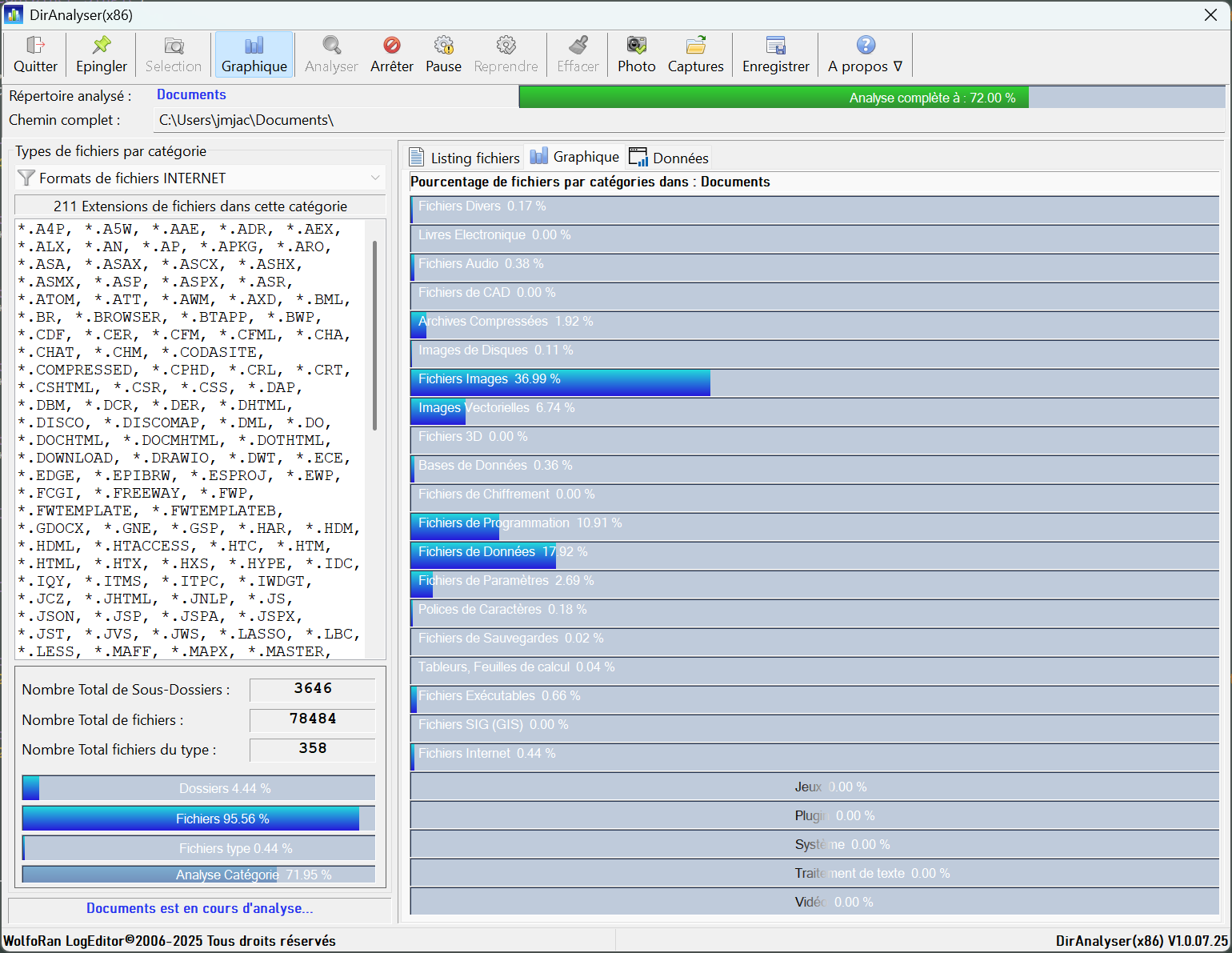
EXAMPLE 1: YOU WANT TO ANALYZE YOUR ENTIRE HARD DRIVE "C:\"
1. Click on "Select"
2. Choose "Windows (C:)" from the drop-down menu that appears and click "OK"
3. Click on "Graph" to activate "Full Scan Mode"
4. Click on "Analyze" to start the process and let the program run.
5. The results are displayed in real time, and various indicators in the form of progress bars show the scan's progress.
6. Wait for the task to finish.
7. If for any reason you wish to pause or stop the scan completely, the buttons in the toolbar allow you to do so. However, despite the large number of file extensions to check, the scan is very fast. In principle, a few minutes are sufficient.
EXAMPLE 2: ANALYZING A FILE WITH ONLY ONE CATEGORY OF FILES SEARCHED FOR.
1. Click on "Select"
2. Choose a folder, directory, or USB drive, then click "OK"
3. From the list of categories, choose the one you want to use and select it.
4. Click on "Analyze" to start the analysis.
5. Wait for the results, which will only be displayed at the first level (no graph or data list).